

Published - a month ago | 17 min read
AI Automation for Small Business: The Complete Beginner's Guide
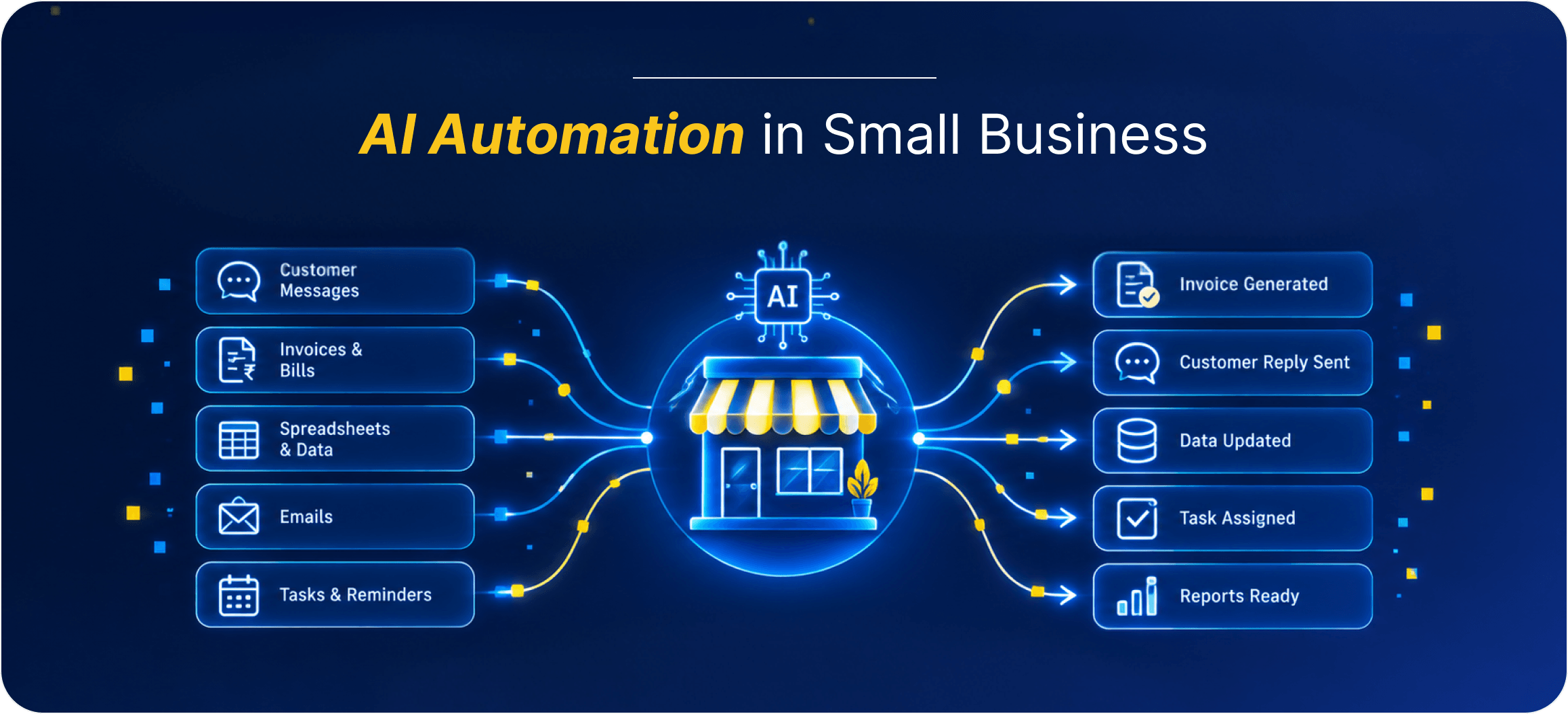
Most articles about AI for small businesses are written by companies that sell AI software. We wanted something you could actually trust, so this guide uses government-backed surveys, bank research, and peer-reviewed studies. It also gives you a week-by-week plan you can copy.
Start with the numbers. AI automation for small business has gone from rare to normal in a very short time. In 2025, 58% of small businesses told the U.S. Chamber of Commerce they use generative AI. Two years earlier it was 23%.
But most owners haven't gone much further than asking a chatbot the odd question. In a 2026 Goldman Sachs survey of more than 1,200 small business owners, 76% said they use AI. Only 14% had built it into their core operations. And 73% said more training would help.
So if you're using AI a bit but aren't sure how to make it actually save you time, you're in good company. This guide covers:
- what AI automation is, in plain English
- what the research says you can realistically expect
- how to work out whether it's worth it for your business
- which tasks to hand over first
- the best AI tools to automate small business work at each budget
- a detailed 30-day plan, with a real-world example from start to finish
Start with the numbers. AI automation for small business has gone from rare to normal in a very short time. In 2025, 58% of small businesses told the U.S. Chamber of Commerce they use generative AI. Two years earlier it was 23%.
But most owners haven't gone much further than asking a chatbot the odd question. In a 2026 Goldman Sachs survey of more than 1,200 small business owners, 76% said they use AI. Only 14% had built it into their core operations. And 73% said more training would help.
So if you're using AI a bit but aren't sure how to make it actually save you time, you're in good company. This guide covers:
- what AI automation is, in plain English
- what the research says you can realistically expect
- how to work out whether it's worth it for your business
- which tasks to hand over first
- the best AI tools to automate small business work at each budget
- a detailed 30-day plan, with a real-world example from start to finish
AI Automation for Small Business: The Short Version
Short on time? These are the points that matter most.
- Lots of businesses use AI. Few have automated anything. 58% use generative AI (U.S. Chamber of Commerce, 2025), but only 14% have it built into daily operations (Goldman Sachs, 2026).
- The biggest gains show up in specific tasks. In published studies, support agents solved 14% more issues per hour, and professionals finished writing tasks 40% faster.
- Start with repetitive work. Customer questions, bookings, routine emails, invoice reminders and lead follow-up are the easiest wins.
- You can start for $0. Most businesses that move to paid tools spend around $50 to $100 a month.
- How you use it matters more than which tool you pick. McKinsey found the companies with the best results changed how the work was done, one process at a time.
- Keep a person in charge of anything important. Let AI draft. Let a human approve.
- Lots of businesses use AI. Few have automated anything. 58% use generative AI (U.S. Chamber of Commerce, 2025), but only 14% have it built into daily operations (Goldman Sachs, 2026).
- The biggest gains show up in specific tasks. In published studies, support agents solved 14% more issues per hour, and professionals finished writing tasks 40% faster.
- Start with repetitive work. Customer questions, bookings, routine emails, invoice reminders and lead follow-up are the easiest wins.
- You can start for $0. Most businesses that move to paid tools spend around $50 to $100 a month.
- How you use it matters more than which tool you pick. McKinsey found the companies with the best results changed how the work was done, one process at a time.
- Keep a person in charge of anything important. Let AI draft. Let a human approve.
What Is AI Automation for Small Business?
AI automation for small business is software that does routine work for you, such as answering customer questions, writing emails, booking appointments, chasing invoices and saving new leads to your CRM. You set it up once and it runs in the background, while a person checks anything important before a customer sees it.
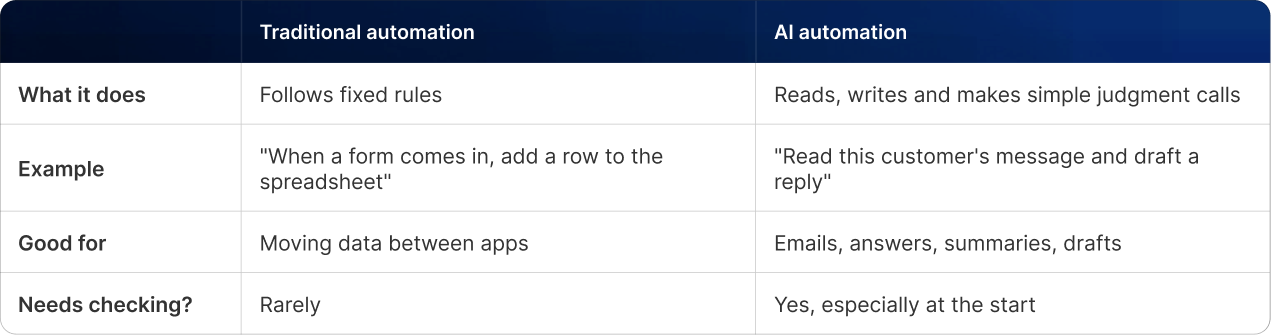
Automation isn't new. Tools that copy a form entry into a spreadsheet have been around for years. What's new is that AI can read a message, understand what the person wants and write a sensible reply. So jobs that used to need someone at a keyboard, like answering "do you cover my area?" emails, can now be automated too.
A quick way to tell the two apart:
Automation isn't new. Tools that copy a form entry into a spreadsheet have been around for years. What's new is that AI can read a message, understand what the person wants and write a sensible reply. So jobs that used to need someone at a keyboard, like answering "do you cover my area?" emails, can now be automated too.
A quick way to tell the two apart:
How AI Automation Works for Small Business
Most setups use two kinds of tools together.
1. An AI assistant such as ChatGPT, Claude or Gemini. This is the part that writes, summarizes and answers questions.
2. An automation tool such as Zapier or Make. This is the part that connects your apps and passes information between them, so nobody has to copy and paste.
Think of the AI assistant as the writer and the automation tool as the delivery driver. One creates the message. The other gets it to the right place.
Here's what that looks like for a new website inquiry:
1. A customer fills in the contact form on your website.
2. Zapier sees the new message and saves the customer's details in your CRM.
3. The AI assistant reads the message and writes a reply using your business information.
4. The reply lands in your email as a draft, and your phone gets an alert.
5. You read it, tweak it if needed, and hit send.
The whole thing takes about a minute. Before, it probably took you ten.
1. An AI assistant such as ChatGPT, Claude or Gemini. This is the part that writes, summarizes and answers questions.
2. An automation tool such as Zapier or Make. This is the part that connects your apps and passes information between them, so nobody has to copy and paste.
Think of the AI assistant as the writer and the automation tool as the delivery driver. One creates the message. The other gets it to the right place.
Here's what that looks like for a new website inquiry:
1. A customer fills in the contact form on your website.
2. Zapier sees the new message and saves the customer's details in your CRM.
3. The AI assistant reads the message and writes a reply using your business information.
4. The reply lands in your email as a draft, and your phone gets an alert.
5. You read it, tweak it if needed, and hit send.
The whole thing takes about a minute. Before, it probably took you ten.
What Results Can You Expect from AI Automation for Small Business?
Be careful with AI numbers you find online. Claims like "AI will double your revenue" usually come from a vendor's sales page, or from nowhere at all.
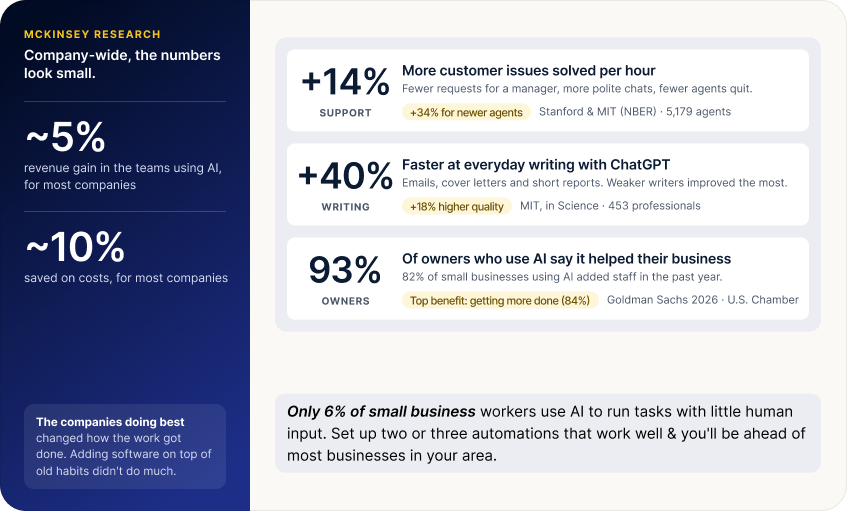
McKinsey's research gives a more honest picture. As Tech Brew reported, most companies saw revenue gains of under 5% in the teams using AI, and most saved 10% or less on costs. McKinsey also found that the companies doing best had changed how the work got done. Just adding software on top of old habits didn't do much.
Those company-wide numbers look small. But when researchers look at single tasks, the gains are much bigger. Here are three studies worth knowing.
McKinsey's research gives a more honest picture. As Tech Brew reported, most companies saw revenue gains of under 5% in the teams using AI, and most saved 10% or less on costs. McKinsey also found that the companies doing best had changed how the work got done. Just adding software on top of old habits didn't do much.
Those company-wide numbers look small. But when researchers look at single tasks, the gains are much bigger. Here are three studies worth knowing.
Study 1: Support agents solved 14% more issues per hour
Who did it: Economists from Stanford and MIT, published by the National Bureau of Economic Research.
What they tested: 5,179 customer support agents, before and after they got an AI assistant that suggested replies.
What they found:
- Agents solved 14% more customer issues per hour on average.
- New and less experienced agents improved by 34%.
- According to MIT Sloan, customers asked for a manager less often, conversations got more polite, and fewer agents quit.
Why it matters for you: In a small business, one person often knows how everything works. AI can help a new hire get up to speed much faster, which takes pressure off you and your best people.
What they tested: 5,179 customer support agents, before and after they got an AI assistant that suggested replies.
What they found:
- Agents solved 14% more customer issues per hour on average.
- New and less experienced agents improved by 34%.
- According to MIT Sloan, customers asked for a manager less often, conversations got more polite, and fewer agents quit.
Why it matters for you: In a small business, one person often knows how everything works. AI can help a new hire get up to speed much faster, which takes pressure off you and your best people.
Study 2: Writing tasks took 40% less time
Who did it: MIT economists Shakked Noy and Whitney Zhang, published in the journal Science and summarized by MIT News.
What they tested: 453 professionals doing everyday writing, like emails, cover letters and short reports.
What they found:
- People using ChatGPT finished 40% faster.
- Independent reviewers rated their work 18% higher in quality.
- Weaker writers improved the most.
Why it matters for you: Think about how much time you spend on emails, quotes, social posts and product descriptions. Most of that is exactly the kind of writing this study measured.
What they tested: 453 professionals doing everyday writing, like emails, cover letters and short reports.
What they found:
- People using ChatGPT finished 40% faster.
- Independent reviewers rated their work 18% higher in quality.
- Weaker writers improved the most.
Why it matters for you: Think about how much time you spend on emails, quotes, social posts and product descriptions. Most of that is exactly the kind of writing this study measured.
Study 3: What small business owners say
Surveys of real owners show the same thing.
- In the Goldman Sachs 2026 survey, 93% of owners who use AI said it had helped their business. The most common benefit was getting more done (84%).
- The U.S. Chamber of Commerce found that 82% of small businesses using AI added staff in the past year. So far, AI seems to be helping businesses grow their teams.
- A 2026 U.S. Chamber of Commerce Foundation study found that only 6% of small business workers use AI to run tasks automatically with little human input.
That last one is the opportunity. Almost everyone is still typing questions into a chatbot by hand. If you set up even two or three automations that work well, you'll be ahead of most businesses in your area.
- In the Goldman Sachs 2026 survey, 93% of owners who use AI said it had helped their business. The most common benefit was getting more done (84%).
- The U.S. Chamber of Commerce found that 82% of small businesses using AI added staff in the past year. So far, AI seems to be helping businesses grow their teams.
- A 2026 U.S. Chamber of Commerce Foundation study found that only 6% of small business workers use AI to run tasks automatically with little human input.
That last one is the opportunity. Almost everyone is still typing questions into a chatbot by hand. If you set up even two or three automations that work well, you'll be ahead of most businesses in your area.
How to work out if AI automation is worth it for you
You don't need a spreadsheet model. A simple sum will do:
Hours saved per week × what your hour is worth × 52 weeks − yearly tool cost = yearly value
Here's an example. Say your team spends 10 hours a week on emails, quotes and posts. Based on the MIT study, a 40% cut saves about 4 hours a week.
Hours saved per week × what your hour is worth × 52 weeks − yearly tool cost = yearly value
Here's an example. Say your team spends 10 hours a week on emails, quotes and posts. Based on the MIT study, a 40% cut saves about 4 hours a week.
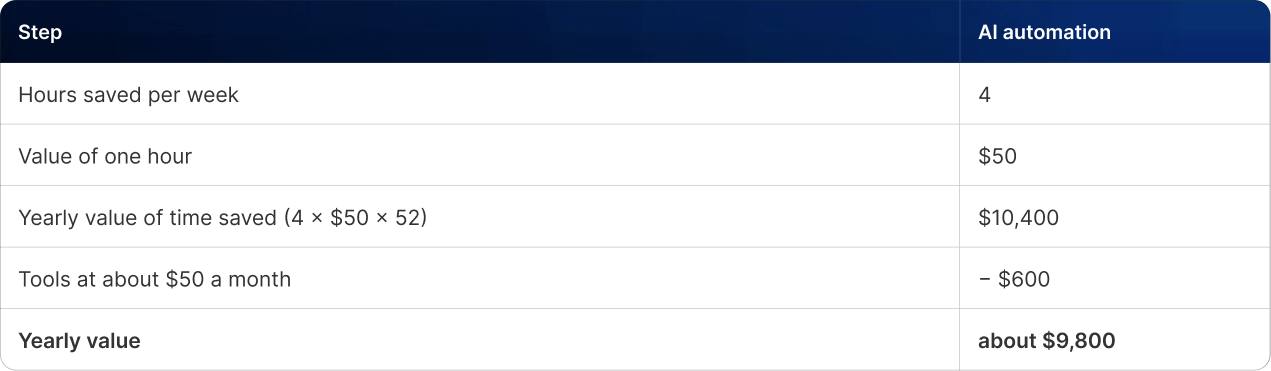
(This is an example. Plug in your own numbers. Even if you only save half as much, it's usually still well worth it.)
What Results Can You Expect from AI Automation for Small Business?
Don't try to automate everything in week one. That's how people end up with ten free trials and nothing that works. Pick one task, get it right, then do the next one.
To choose, ask three questions about each task:
1. Do we do it five or more times a week? If not, the time saved is too small to bother with yet.
2. Do we do it the same way each time? AI works best when the steps are predictable.
3. If AI gets it slightly wrong, is that easy to spot and fix? Start with low-risk work.
If the answer is yes to all three, it's a good first candidate. For most small businesses, these five tasks pass.
To choose, ask three questions about each task:
1. Do we do it five or more times a week? If not, the time saved is too small to bother with yet.
2. Do we do it the same way each time? AI works best when the steps are predictable.
3. If AI gets it slightly wrong, is that easy to spot and fix? Start with low-risk work.
If the answer is yes to all three, it's a good first candidate. For most small businesses, these five tasks pass.
1. Answering common customer questions
What it looks like: Questions about your hours, prices, location, services and service area. They probably make up a big chunk of your inbox.
What to use: A website chat tool like Tidio, or an AI-drafted email reply set up in Zapier.
Tip: Start by writing down the 10 questions you get most often, with your best answer to each. That list becomes the AI's instructions.
What to use: A website chat tool like Tidio, or an AI-drafted email reply set up in Zapier.
Tip: Start by writing down the 10 questions you get most often, with your best answer to each. That list becomes the AI's instructions.
2. Booking appointments and sending reminders
What it looks like: The "does Thursday at 3 work?" back-and-forth, plus reminder calls or texts the day before.
What to use: An online booking tool like Calendly, with automatic email and text reminders.
Tip: Send reminders 24 hours before and again 2 hours before. Add a link to reschedule so people move their slot instead of simply not showing up.
Tip: Send reminders 24 hours before and again 2 hours before. Add a link to reschedule so people move their slot instead of simply not showing up.
3. Writing everyday emails and posts
What it looks like: Follow-up emails, quotes, social posts, product descriptions, job ads.
What to use: An AI assistant like ChatGPT, Claude or Gemini.
Tip: Give the AI your rough notes and one example of something you've written before that you liked. Ask it to match that style. Then edit the draft so it sounds like you.
What to use: An AI assistant like ChatGPT, Claude or Gemini.
Tip: Give the AI your rough notes and one example of something you've written before that you liked. Ask it to match that style. Then edit the draft so it sounds like you.
4. Sending invoices and payment reminders
What it looks like: Creating invoices, sending them, and chasing late payers.
What to use: Accounting software like QuickBooks Online, which can send invoices and reminders on a schedule.
Tip: Set reminders at 7, 14 and 30 days after the due date. Keep the tone polite. Most late payers have just forgotten.
What to use: Accounting software like QuickBooks Online, which can send invoices and reminders on a schedule.
Tip: Set reminders at 7, 14 and 30 days after the due date. Keep the tone polite. Most late payers have just forgotten.
5. Following up with new leads
What it looks like: Someone fills in your contact form and waits hours, or days, for a reply.
What to use: Zapier connected to a CRM like HubSpot and your email.
Tip: Aim to reply within 5 minutes. Customers often go with whoever gets back to them first.
What to use: Zapier connected to a CRM like HubSpot and your email.
Tip: Aim to reply within 5 minutes. Customers often go with whoever gets back to them first.
What to keep in human hands
Some work should always be done, or at least checked, by a person:
- legal documents and contracts
- hiring and firing decisions
- financial advice to customers
- complaints and upset customers
- anything involving health, money or personal data
The rules around AI are changing too. The U.S. Chamber of Commerce found that only 31% of small businesses feel ready for proposed AI laws, which could require businesses to disclose AI use and keep a person involved in key decisions. Our rule of thumb: if a customer will see it and it matters, a person reads it first
- legal documents and contracts
- hiring and firing decisions
- financial advice to customers
- complaints and upset customers
- anything involving health, money or personal data
The rules around AI are changing too. The U.S. Chamber of Commerce found that only 31% of small businesses feel ready for proposed AI laws, which could require businesses to disclose AI use and keep a person involved in key decisions. Our rule of thumb: if a customer will see it and it matters, a person reads it first
Best AI Tools to Automate Small Business Tasks by Budget
The best AI tools to automate small business work are the ones your team will actually use every day. Start with free plans. Only pay when you keep hitting the limits.
Free tools ($0 a month)
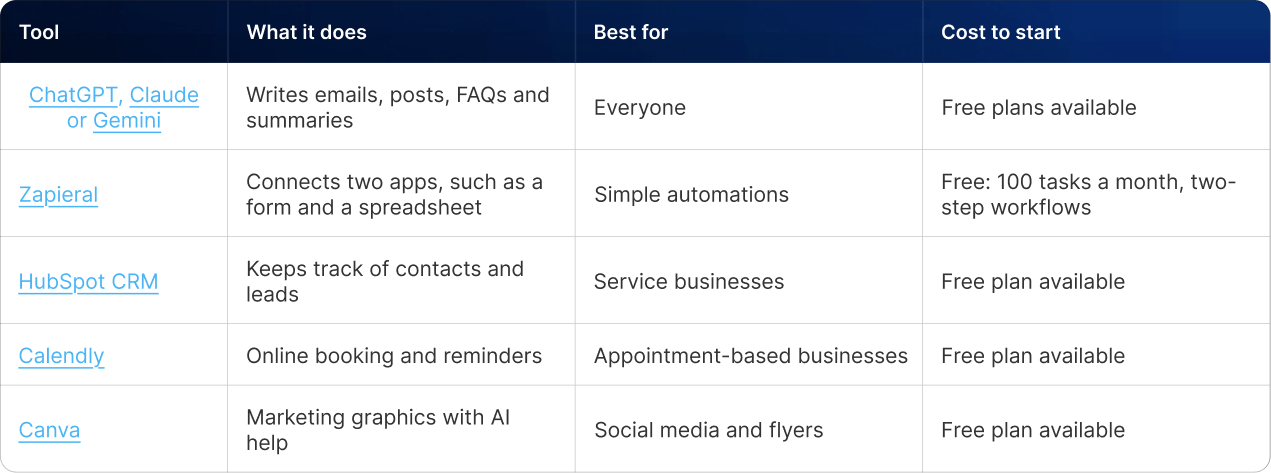
Tools for growing businesses (about $50 to $100 a month)
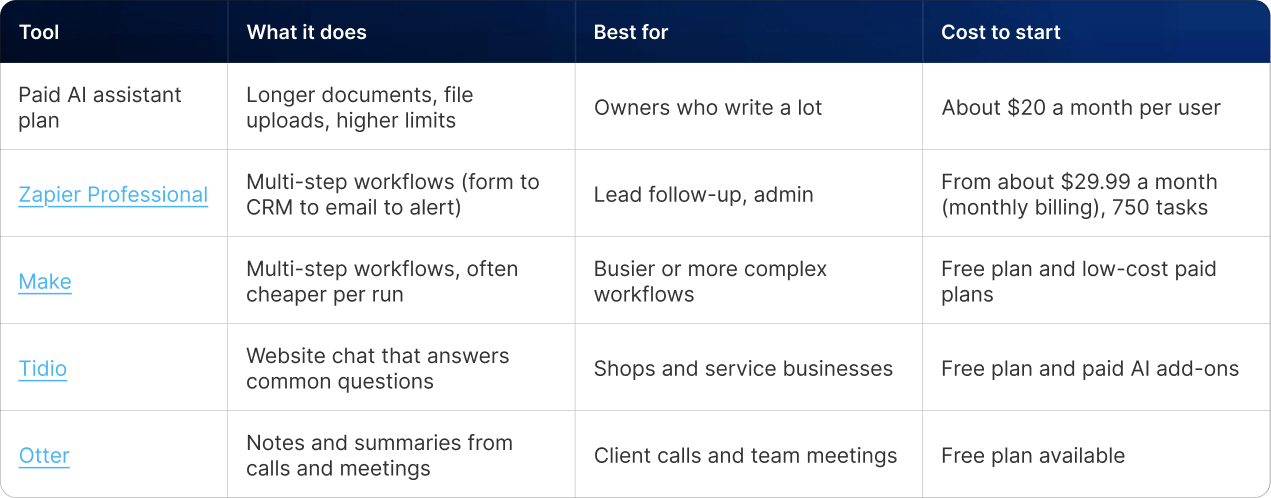
Tools for larger teams ($150 to $300+ a month)
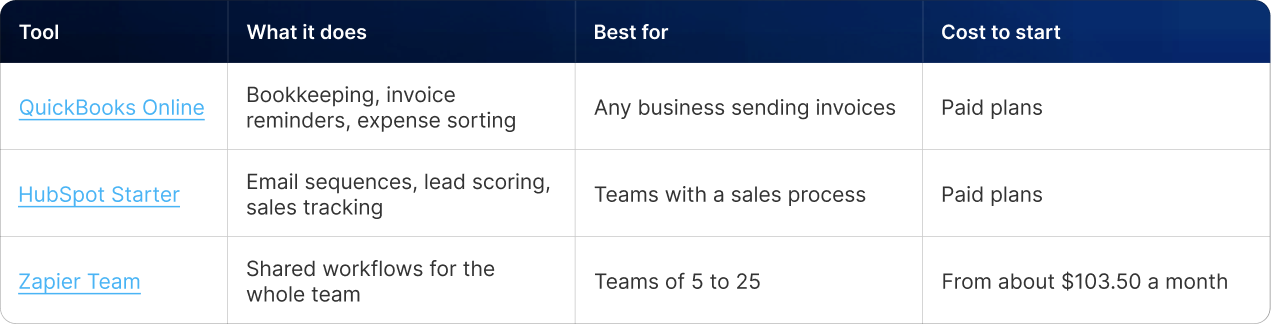
Prices were checked in September 2026 and change often. Check each company's website before you buy.
Example: a simple tool stack for a local service business
Here's how a plumber, salon or dental office might put these together:
1. Calendly takes bookings online.
2. Zapier sends each new booking to HubSpot.
3. An AI assistant writes the follow-up email.
4. QuickBooks sends the invoice and payment reminders.
Four tools, no copying and pasting, and usually less than $100 a month to start.
1. Calendly takes bookings online.
2. Zapier sends each new booking to HubSpot.
3. An AI assistant writes the follow-up email.
4. QuickBooks sends the invoice and payment reminders.
Four tools, no copying and pasting, and usually less than $100 a month to start.
How to Implement AI Automation for Small Business: A 30-Day Plan
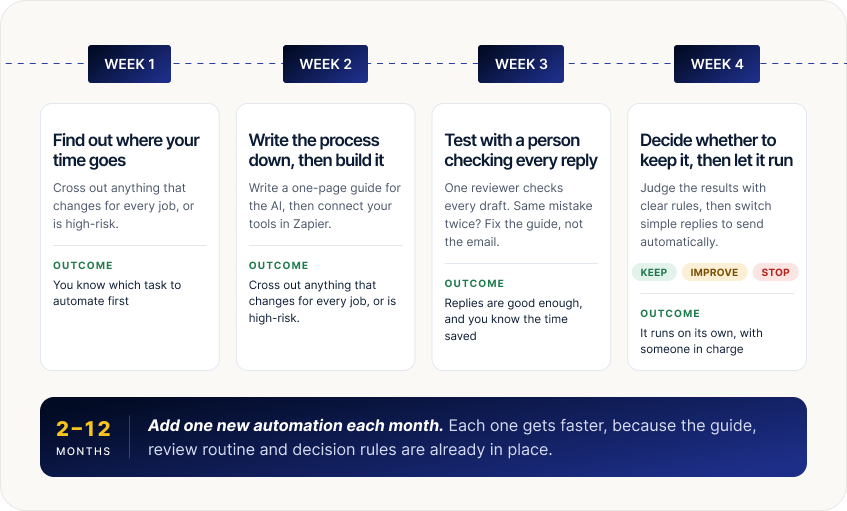
This plan takes you through your first automation, one week at a time. Each week tells you what to do, who does it and how to set up the tools.
We'll follow one example all the way through: a plumbing company with five staff that gets about 25 inquiries a week through its website. Right now, the owner reads every message, types a reply and copies the customer's details into a spreadsheet. It works, but it eats hours.
Your business might be a salon, a dental office or an accounting firm. The steps are the same.
We'll follow one example all the way through: a plumbing company with five staff that gets about 25 inquiries a week through its website. Right now, the owner reads every message, types a reply and copies the customer's details into a spreadsheet. It works, but it eats hours.
Your business might be a salon, a dental office or an accounting firm. The steps are the same.
Week 1: Find out where your time goes
By the end of this week: you'll know exactly which task to automate first, and how long it takes today.
How to run the workload audit:
1. Open a new spreadsheet in Google Sheets or Excel.
2. Add six columns: task, times per week, minutes each time, total minutes per week, same steps each time (yes or no), and risk if something goes wrong (low, medium or high).
3. Ask yourself and everyone on the team to fill it in at the end of each day for five working days. It takes about five minutes a day. Don't guess from memory. People are usually way off.
4. On Friday, add up the total minutes for each task and sort from biggest to smallest.
5. Cross out anything that changes from job to job, or anything high risk.
6. The task at the top of what's left is your first automation.
Here's what the plumbing company's audit looked like:
How to run the workload audit:
1. Open a new spreadsheet in Google Sheets or Excel.
2. Add six columns: task, times per week, minutes each time, total minutes per week, same steps each time (yes or no), and risk if something goes wrong (low, medium or high).
3. Ask yourself and everyone on the team to fill it in at the end of each day for five working days. It takes about five minutes a day. Don't guess from memory. People are usually way off.
4. On Friday, add up the total minutes for each task and sort from biggest to smallest.
5. Cross out anything that changes from job to job, or anything high risk.
6. The task at the top of what's left is your first automation.
Here's what the plumbing company's audit looked like:
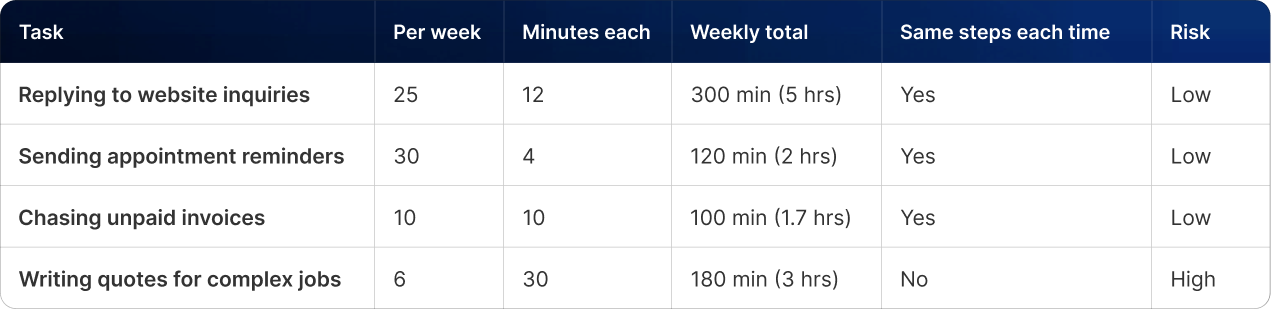
Complex quotes take three hours a week, but every job is different and a wrong quote costs money. So they're off the list for now. Website inquiries win. Five hours a week, same steps every time.
Before you move on, write down two numbers:
- How long the task takes now (here: 12 minutes per inquiry)
- How long customers wait for a reply (here: about 4 hours)
You'll compare against these in Week 3.
Before you move on, write down two numbers:
- How long the task takes now (here: 12 minutes per inquiry)
- How long customers wait for a reply (here: about 4 hours)
You'll compare against these in Week 3.
Week 2: Write the process down, then build the automation
By the end of this week: every new inquiry will turn into a CRM record and a ready-to-check reply, within about a minute.
Step 1: Write a one-page process guide
This is the step most people skip, and it makes the biggest difference. The AI will follow this guide, so write it like you're briefing a new employee on day one. Include:
- services you offer, and ones you don't
- your service area (towns or ZIP codes)
- prices you're happy to share, like your call-out fee
- business hours and emergency availability
- how replies should sound (for example: friendly, professional, short)
- the next step every reply should offer, usually a booking link
- messages that must go to the owner, like complaints, refunds and insurance claims
Step 2: Build the workflow in Zapier
In this example, Zapier connects the website form, an AI step, HubSpot CRM and Gmail. Here's the setup, step by step:
1. Set the trigger. In Zapier, create a new workflow (Zapier calls it a "Zap"). Choose your form tool as the trigger, such as a WordPress form plugin, Jotform, Typeform or Google Forms. Pick the event "new form submission." Then send one test message so Zapier can see your form fields: name, email, phone, ZIP code and message.
2. Add a filter. Tell the workflow to keep going only if the ZIP code is in your service area. Messages from outside your area can get a separate, polite "sorry, we don't cover you" reply.
3. Save the lead in your CRM. Add a step that creates or updates the contact in HubSpot using the form details. No more copying into a spreadsheet.
4. Add the AI step. Use Zapier's built-in AI step, or connect a ChatGPT or Claude account. Paste your process guide into the instructions, then add the customer's name and message from the form. Here's a sample instruction you can adapt:
You are the customer service assistant for [Company Name], a plumbing company serving [area]. Using the business information below, write a reply to this customer inquiry. Keep it under 120 words, professional and friendly. Answer their question if the information is provided. Always end with our booking link: [link]. If the message mentions a complaint, refund or insurance claim, reply only with the word ESCALATE.
5. Save the reply as a draft. Add a Gmail step that saves the AI's reply as a draft to the customer. Don't send it yet. For now, a person checks every reply.
6. Catch sensitive messages. Add a path: if the AI's reply says "ESCALATE," skip the draft and send the owner a text or email alert instead.
7. Let the team know. Add a final step that sends a quick alert by email, text or team chat: "New draft ready to check."
8. Test it properly. Send yourself five to ten test messages, like a price question, an emergency, someone outside your area and a complaint. Make sure each one does the right thing. Then switch it on.
Which Zapier plan do you need? A basic two-step version (form to CRM) works on the free plan. The full workflow above needs a paid plan. With 25 inquiries a week and about four steps each, you'll use around 400 tasks a month. That fits inside the entry Professional plan, which includes 750.
Step 1: Write a one-page process guide
This is the step most people skip, and it makes the biggest difference. The AI will follow this guide, so write it like you're briefing a new employee on day one. Include:
- services you offer, and ones you don't
- your service area (towns or ZIP codes)
- prices you're happy to share, like your call-out fee
- business hours and emergency availability
- how replies should sound (for example: friendly, professional, short)
- the next step every reply should offer, usually a booking link
- messages that must go to the owner, like complaints, refunds and insurance claims
Step 2: Build the workflow in Zapier
In this example, Zapier connects the website form, an AI step, HubSpot CRM and Gmail. Here's the setup, step by step:
1. Set the trigger. In Zapier, create a new workflow (Zapier calls it a "Zap"). Choose your form tool as the trigger, such as a WordPress form plugin, Jotform, Typeform or Google Forms. Pick the event "new form submission." Then send one test message so Zapier can see your form fields: name, email, phone, ZIP code and message.
2. Add a filter. Tell the workflow to keep going only if the ZIP code is in your service area. Messages from outside your area can get a separate, polite "sorry, we don't cover you" reply.
3. Save the lead in your CRM. Add a step that creates or updates the contact in HubSpot using the form details. No more copying into a spreadsheet.
4. Add the AI step. Use Zapier's built-in AI step, or connect a ChatGPT or Claude account. Paste your process guide into the instructions, then add the customer's name and message from the form. Here's a sample instruction you can adapt:
You are the customer service assistant for [Company Name], a plumbing company serving [area]. Using the business information below, write a reply to this customer inquiry. Keep it under 120 words, professional and friendly. Answer their question if the information is provided. Always end with our booking link: [link]. If the message mentions a complaint, refund or insurance claim, reply only with the word ESCALATE.
5. Save the reply as a draft. Add a Gmail step that saves the AI's reply as a draft to the customer. Don't send it yet. For now, a person checks every reply.
6. Catch sensitive messages. Add a path: if the AI's reply says "ESCALATE," skip the draft and send the owner a text or email alert instead.
7. Let the team know. Add a final step that sends a quick alert by email, text or team chat: "New draft ready to check."
8. Test it properly. Send yourself five to ten test messages, like a price question, an emergency, someone outside your area and a complaint. Make sure each one does the right thing. Then switch it on.
Which Zapier plan do you need? A basic two-step version (form to CRM) works on the free plan. The full workflow above needs a paid plan. With 25 inquiries a week and about four steps each, you'll use around 400 tasks a month. That fits inside the entry Professional plan, which includes 750.
Week 3: Test it with a person checking every reply
By the end of this week: you'll know whether the replies are good enough, and how much time you're saving.
How to run the review week:
1. Pick one reviewer. In our example, it's the office manager.
2. Set check times. They open the Gmail drafts folder at fixed times, such as 9 a.m., noon and 3 p.m.
3. Check, fix, send. They read each draft, fix anything that's off and send it.
4. Keep a simple log. Add a new tab to your spreadsheet with four columns: date, type of inquiry, how much editing was needed (none, small or big), and minutes spent checking. A small edit is a wording change. A big edit is a rewrite or a wrong fact.
5. Fix the guide, not just the email. If the same mistake shows up twice, like the wrong call-out fee, update the process guide and the AI instructions in Zapier. Most early mistakes happen because something was missing from the guide.
Here's how the plumbing company's first week went:
How to run the review week:
1. Pick one reviewer. In our example, it's the office manager.
2. Set check times. They open the Gmail drafts folder at fixed times, such as 9 a.m., noon and 3 p.m.
3. Check, fix, send. They read each draft, fix anything that's off and send it.
4. Keep a simple log. Add a new tab to your spreadsheet with four columns: date, type of inquiry, how much editing was needed (none, small or big), and minutes spent checking. A small edit is a wording change. A big edit is a rewrite or a wrong fact.
5. Fix the guide, not just the email. If the same mistake shows up twice, like the wrong call-out fee, update the process guide and the AI instructions in Zapier. Most early mistakes happen because something was missing from the guide.
Here's how the plumbing company's first week went:
(These are example figures. Your results will vary.)
Week 4: Decide whether to keep it, then let it run
By the end of this week: your automation will be running on its own for simple messages, with someone in charge of it.
Step 1: Decide using clear rules
Set your rules before you look at the Week 3 numbers. It keeps you honest. These are good ones to start with:
Step 1: Decide using clear rules
Set your rules before you look at the Week 3 numbers. It keeps you honest. These are good ones to start with:
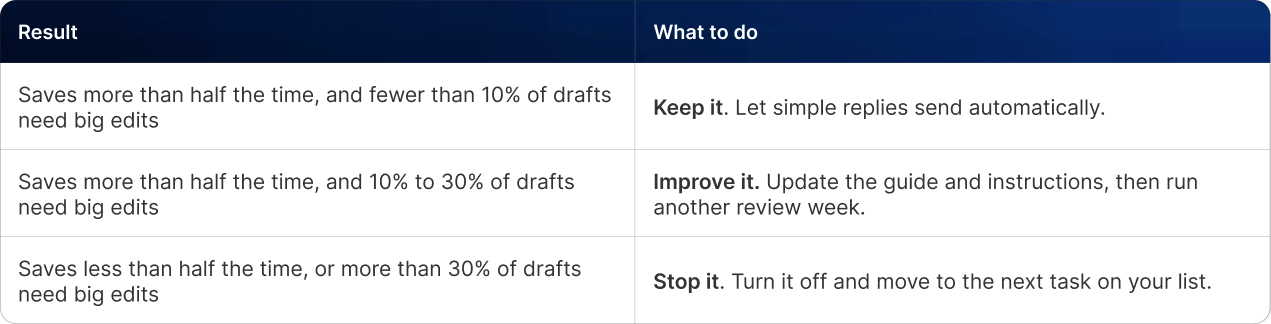
In our example, 12% of drafts needed big edits in week one. The owner fixed two things in the guide. In the next review week, it dropped to 4%. So the automation stays.
Step 2: Switch simple replies to automatic sending
1. For simple questions (prices, availability, booking requests), change the Gmail step from "create draft" to "send email."
2. Keep drafts for anything sensitive. Keep the owner alert for complaints and refunds.
3. Save a copy of every automatic reply in the CRM or a shared folder, so the owner can spot-check a few each week.
4. Turn on Zapier's error alerts. You'll get a message if a connection breaks, which often happens after someone changes a password.
Step 3: Give it an owner
1. Pick one person to check the automation every week.
2. Save the process guide, the AI instructions and a screenshot of the workflow in a shared folder.
3. Put a 15-minute review in the calendar once a month.
4. Choose your next task from the Week 1 list.
Step 2: Switch simple replies to automatic sending
1. For simple questions (prices, availability, booking requests), change the Gmail step from "create draft" to "send email."
2. Keep drafts for anything sensitive. Keep the owner alert for complaints and refunds.
3. Save a copy of every automatic reply in the CRM or a shared folder, so the owner can spot-check a few each week.
4. Turn on Zapier's error alerts. You'll get a message if a connection breaks, which often happens after someone changes a password.
Step 3: Give it an owner
1. Pick one person to check the automation every week.
2. Save the process guide, the AI instructions and a screenshot of the workflow in a shared folder.
3. Put a 15-minute review in the calendar once a month.
4. Choose your next task from the Week 1 list.
Months 2 to 12: Add one new automation each month
Repeat the same four weeks each month, and you'll have 12 automations by the end of the year. Each one gets faster, because you already have the guide, the review routine and the decision rules.
For the plumbing company, the next few months could look like this:
For the plumbing company, the next few months could look like this:
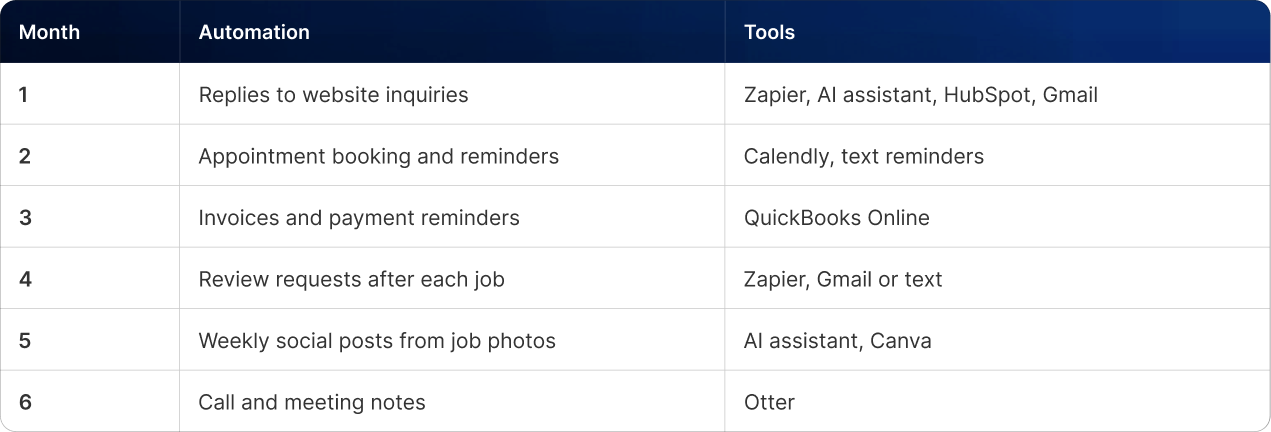
Based on the Week 1 audit, the first three alone save about eight hours a week. That's a full working day, every week. It also matches what McKinsey found: the best results come from changing how work gets done, one process at a time.
Two rules to follow the whole way through
- Keep customer data safe. Never paste card numbers, passwords or health records into a general AI chat tool. Check each tool's privacy settings before you connect it to your accounts.
- Show your team how it works. In the Goldman Sachs survey, 73% of owners said more training would help them use AI well. A 20-minute walkthrough at a team meeting makes a big difference.
- Show your team how it works. In the Goldman Sachs survey, 73% of owners said more training would help them use AI well. A 20-minute walkthrough at a team meeting makes a big difference.
Common AI Automation Mistakes for Small Business
We see the same few mistakes again and again.
1. Automating a messy process. Automation makes things faster, including the problems. If your quoting process is a mess, fix the steps first, then automate.
2. Signing up for too many tools. Five tools that are half set up will help you less than one tool that's set up properly.
3. Skipping the process guide. If the AI doesn't know your prices, hours and rules, it will guess. Write it down first.
4. Not measuring anything. Keep a note of hours saved and mistakes caught. Without those numbers, you can't tell if a tool is worth paying for.
5. Letting AI handle upset customers alone. AI can write a first draft of a reply to a complaint. A person should always read it and press send.
1. Automating a messy process. Automation makes things faster, including the problems. If your quoting process is a mess, fix the steps first, then automate.
2. Signing up for too many tools. Five tools that are half set up will help you less than one tool that's set up properly.
3. Skipping the process guide. If the AI doesn't know your prices, hours and rules, it will guess. Write it down first.
4. Not measuring anything. Keep a note of hours saved and mistakes caught. Without those numbers, you can't tell if a tool is worth paying for.
5. Letting AI handle upset customers alone. AI can write a first draft of a reply to a complaint. A person should always read it and press send.
Getting Started with AI Automation for Small Business
More than half of small businesses already use AI in some way. Very few have it running quietly in the background every day. In 2026, that's where most of the time savings are.
You don't need an IT team or a big budget. Here's what to do this week:
1. Set up the time-tracking spreadsheet from Week 1.
2. Ask your team to fill it in for five days.
3. Pick your first task, and start writing your one-page process guide.
A month from now, your first automation could be answering inquiries while you're out on a job.
You don't need an IT team or a big budget. Here's what to do this week:
1. Set up the time-tracking spreadsheet from Week 1.
2. Ask your team to fill it in for five days.
3. Pick your first task, and start writing your one-page process guide.
A month from now, your first automation could be answering inquiries while you're out on a job.
Frequently Asked Questions
1. How much does AI automation cost for a small business?
You can start for free. Free plans from AI assistants, Zapier, HubSpot and Calendly cover the basics. When you outgrow them, most small businesses spend about $50 to $100 a month on a paid AI assistant and an automation tool. Larger teams using AI for sales, support and bookkeeping usually spend $150 to $300 or more.
2. What should a small business automate first?
Pick something you do often, the same way each time, where a small mistake is easy to catch. Good examples are answering common customer questions, booking appointments, sending reminders, writing routine emails, chasing invoices and following up with leads. Automate one, check the results for a few weeks, then add the next.
3. Will AI automation replace my staff?
So far, the research says AI mostly helps staff do their jobs better. The U.S. Chamber of Commerce found that 82% of small businesses using AI added workers in the past year. Owners in the Goldman Sachs survey said AI supports their teams. And NBER research found newer employees gained the most from AI help.
4. What are the best AI tools to automate small business tasks on a small budget?
With little or no budget, start with a free AI assistant such as ChatGPT, Claude or Gemini for writing. Add Zapier's free plan to connect your apps, HubSpot's free CRM for leads, Calendly for bookings and Canva for graphics. Together, these are some of the best AI tools to automate small business tasks without spending anything.
5. Do I need technical skills to set up AI automation?
No. Most automation tools work by clicking and dragging, and they come with ready-made templates. A basic workflow usually takes under an hour to build. The harder part is picking the right task and writing clear instructions. If you can explain a job to a new employee, you can explain it to an AI tool.
6. How long does it take to see results?
Most businesses see time savings in the first week an automation runs. Following the 30-day plan above, you'll have one automation tested, measured and running on its own within a month. After that, adding one new automation each month builds up the savings over the year.

Written by / Author
Manasi Maheshwari
Found this useful? Share With
Top blogs
Most Read Blogs
Wits Innovation Lab is where creativity and innovation flourish. We provide the tools you need to come up with innovative solutions for today's businesses, big or small.
© 2026 Wits Innovation Lab, All rights reserved
Crafted in-house by WIL’s talented minds